
Download and Installation of Python
Introduction
To begin exploring the vast capabilities of Python, you first need to download and install it on your computer. This tutorial will walk you through the process of installing Python on Windows, Linux, and MacOS operating systems. Whether you are a complete beginner or an experienced developer setting up Python on a new machine, our step-by-step instructions will help you complete the installation process smoothly.
No prior programming experience is required to follow along with this tutorial. We will explain every step in detail and provide helpful tips to resolve any common issues that may arise during the installation process.
At the end of this tutorial, you will have Python installed on your computer, and you will be ready to start writing your first Python programs. So, let’s dive into this exciting journey into the world of Python programming!
When you download and install Python from the official Python website (https://www.python.org/), you’ll be getting the base Python distribution, which includes the Python interpreter, standard libraries, development tools, and documentation.
Here’s a short guide on downloading and installing Python on Windows, Linux, and MacOS:
Windows:
- Download Python:
- Visit the official Python website (https://www.python.org/downloads/) and click on the latest version of Python available for Windows.
- Choose the installer appropriate for your system (32-bit or 64-bit).
- Run the Installer:
- Once the download is complete, locate the downloaded file and double-click to run it.
- Follow the installation wizard instructions.
- Make sure to check the box that says “Add Python X.X to PATH” during installation to allow Python to be accessible from the command line.
- Verification:
- Open Command Prompt by searching for “cmd” in the Start menu.
- Type
python --versionand press Enter. You should see the installed Python version.
Linux:
- Using Package Manager:
- Most Linux distributions come with Python pre-installed. To ensure you have the latest version, open the terminal and use your package manager’s command to install Python.
- For Debian/Ubuntu-based systems:
sudo apt-get install python3 - For Fedora:
sudo dnf install python3 - For CentOS:
sudo yum install python3
- Verification:
- Open a terminal and type
python3 --versionto verify the installation.
- Open a terminal and type
MacOS:
- Using Homebrew (optional but recommended):
- If you have Homebrew installed, you can easily install Python by running
brew install python3in the terminal.
- If you have Homebrew installed, you can easily install Python by running
- Downloading from Python website:
- Alternatively, you can download the macOS installer from the Python website.
- Visit the official Python website (https://www.python.org/downloads/) and download the macOS installer.
- Run the Installer:
- Locate the downloaded file and double-click to run the installer.
- Follow the installation wizard instructions.
- Verification:
- Open Terminal and type
python3 --versionto verify the installation.
- Open Terminal and type
Remember, Python 2 is no longer supported as of January 1, 2020. It’s recommended to install Python 3.x versions for all new projects.
Anaconda Python
Anaconda is a popular distribution of the Python programming language that is specifically designed for tasks related to data science and machine learning. It includes a comprehensive suite of pre-installed packages and tools that are commonly used in data analysis, scientific computing, and machine learning projects. Anaconda also comes equipped with the conda package manager, which simplifies the process of installing, updating, and managing additional packages.

Anaconda is a popular distribution of Python, specifically designed for data science and machine learning tasks. It comes with a comprehensive collection of pre-installed packages and tools that are commonly used in data analysis, scientific computing, and machine learning projects. Anaconda also includes the conda package manager, which makes it easy to install, update, and manage additional packages.
Here’s how you can install Anaconda on Windows, Linux, and MacOS:
Windows:
- Download Anaconda:
- Visit the Anaconda website (https://www.anaconda.com/products/distribution) and download the appropriate installer for Windows.
- Choose between the graphical installer (Anaconda Navigator) or the command-line installer (Miniconda). The graphical installer is recommended for most users.
- Run the Installer:
- Once the download is complete, locate the downloaded file and double-click to run it.
- Follow the installation wizard instructions. You can choose the installation location and whether to add Anaconda to your PATH environment variable.
- Verification:
- After installation, you can open Anaconda Navigator from the Start menu or use Anaconda Prompt to start using Anaconda.
Linux:
- Download Anaconda:
- Visit the Anaconda website (https://www.anaconda.com/products/distribution) and download the appropriate installer for Linux.
- Choose between the graphical installer (Anaconda Navigator) or the command-line installer (Miniconda). The command-line installer is often preferred for Linux systems.
- Run the Installer:
Open a terminal and navigate to the directory where the downloaded installer is located.
Run the installer script using the following command:
bash Anaconda3-20xx.xx-Linux-x86_64.shFollow the installation wizard instructions. You can choose the installation location and whether to add Anaconda to your PATH environment variable.
- Verification:
- After installation, you can open Anaconda Navigator from the terminal by typing
anaconda-navigatoror use Anaconda Prompt to start using Anaconda.
- After installation, you can open Anaconda Navigator from the terminal by typing
MacOS:
- Download Anaconda:
- Visit the Anaconda website (https://www.anaconda.com/products/distribution) and download the appropriate installer for MacOS.
- Run the Installer:
- Once the download is complete, locate the downloaded file and double-click to run it.
- Follow the installation wizard instructions. You can choose the installation location and whether to add Anaconda to your PATH environment variable.
- Verification:
- After installation, you can open Anaconda Navigator from the Launchpad or use Anaconda Prompt to start using Anaconda.
Once installed, you can start using Anaconda to manage Python environments, install packages, and work on your data science and machine learning projects.
Python Package Manager
pip
Both pip and conda are package managers used in the Python ecosystem, but they have different purposes and functionalitie.
pip is the default package manager for Python. It is used to install, upgrade, and manage Python packages from the Python Package Index (PyPI) and other repositories.You can use pip to install packages globally or within a specific Python environment. It installs packages directly into the Python environment without considering dependencies from other non-Python libraries. You can check its version by running
pip --version. If it’s not installed or you want to upgrade it, follow these steps:
python get-pip.py You can install pip using the package manager:
sudo apt update
sudo apt install python3-pip
The basic syntax for installing packages with pip is:
pip install package_nameconda
conda` is a cross-platform package manager and environment management system primarily used with Anaconda distribution. It installs not only Python packages but also non-Python libraries and dependencies. It is used to create, manage, and switch between different Python environments containing different sets of packages and dependencies. It also handles non-Python libraries and binaries, making it more suitable for data science and scientific computing.
To update conda to the latest version, you can use the following command in your terminal or command prompt:
conda update condaTo install a package into a conda environment, you can use:
conda install package_nameKey Differences between pip and conda:
pipinstalls packages from PyPI and other Python package repositories, whilecondainstalls packages from Anaconda repository, as well as PyPI and other sources.pipinstalls only Python packages, whilecondainstalls both Python and non-Python packages, making it more versatile.condaprovides robust environment management capabilities, allowing you to create isolated Python environments with specific package dependencies, whilepipfocuses primarily on package installation within a single Python environment.
In summary, pip is the standard package manager for Python packages, while conda is more geared towards managing environments and handling a wider range of dependencies, making it particularly useful for data science and scientific computing projects.
Vertual Envrionment
Virtualenv” is a software that helps in creating separated Python environments. These environments are not attached to the Python installation on your system and have their own set of packages and dependencies. This isolation allows you to work on multiple projects with different requirements without worrying about compatibility issues or affecting other projects.
To use virtualenv, you first need to install it using pip.
python3 -m pip install --user virtualenvOnce installed, you can create a new virtual environment by running:
python3 -m venv myenvReplace myenv with the desired name for your virtual environment. After creating the virtual environment, you can activate it:
myenv\Scripts\activateOn Unix or MacOS:
source myenv/bin/activateOnce activated, your shell prompt will change to indicate that you are now working within the virtual environment. You can then use pip to install packages, and they will be installed only within the virtual environment.
To deactivate the virtual environment and return to the system-wide Python installation, you can simply run:
deactivateConda Envrionment
A Conda environment is a directory that contains a particular version of Python, as well as a group of packages and their dependencies. Conda is a widely used package manager and environment management system, mainly used for Python, but it also supports other programming languages. It enables you to create, manage, and switch between different environments with different sets of dependencies easily.
Open a terminal or command prompt, and use the following command to create a new Conda environment:
conda create --name myenvYou can also specify which version of Python you want to use in the environment by adding the python parameter:
conda create --name myenv python=3.9You can install additional packages into the environment at the time of creation by specifying them after the environment name:
conda create --name myenv python=3.9 numpy pandasOnce the environment is created, you can activate it using the following command:
conda activate myenvYou can deactivate the environment at any time by running:
conda deactivateYou can view a list of all created Conda environments using the command:
conda env listTo remove an environment, you can use the following command:
conda env remove --name myenvPython’s Integrated Development and Learning Environment (IDLE)
“IDLE” is an abbreviation for “Integrated Development and Learning Environment.” It is a software tool that helps with Python programming by providing an integrated development environment (IDE). With IDLE, you can easily develop Python programs using a user-friendly interface and a range of tools. Whether you are new to programming or an experienced developer, IDLE can be a great tool to help you improve your Python coding skills.
Here are some key features of IDLE:
Code Editor: IDLE includes a built-in code editor with features like syntax highlighting, automatic indentation, and code completion, which help improve coding efficiency and readability.
Interactive Shell: IDLE comes with an interactive Python shell, allowing users to execute Python code line by line and see immediate results. This feature is particularly useful for testing code snippets and exploring Python syntax and functionality.
Debugger: IDLE includes a debugger tool that allows users to set breakpoints, step through code, and inspect variables, helping identify and fix errors and bugs in Python programs.
File Browser: IDLE provides a file browser that allows users to navigate files and directories, create new Python scripts, and open existing files for editing.
Integrated Documentation: IDLE includes built-in documentation and help features, allowing users to access Python documentation directly within the IDE, making it easier to find information about Python modules, functions, and classes.
IDLE typically comes pre-installed with the standard Python distribution on Ubuntu. However, if for some reason it’s not installed or you want to ensure you have the latest version, you can install it using the package manager.
sudo apt install idle3To open IDLE, type the word idle on the terminal and run it.
idle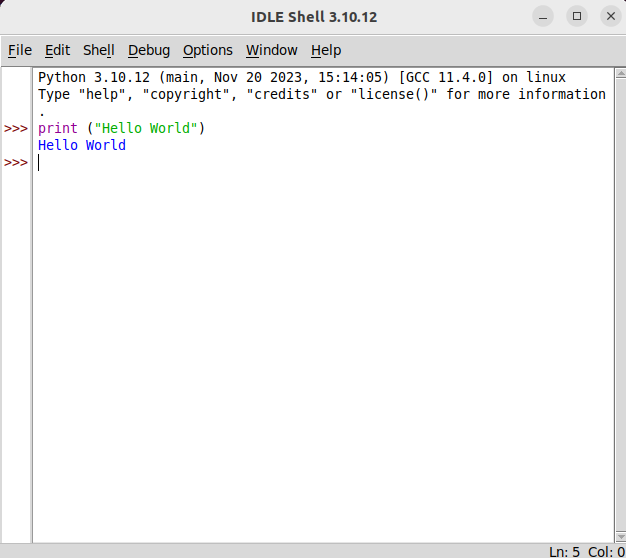
Code Editors
A code editor for Python is designed to help programmers write, edit, and manage Python code more efficiently. Although Python code can technically be written in any text editor, a dedicated code editor offers additional features that can enhance the development experience and productivity of Python programmers.
A Python code editor is a software tool specifically designed for writing, editing, and managing Python code. While Python code can technically be written in any text editor, a dedicated code editor offers features that enhance the development experience and productivity of Python programmers. Some common features of Python code editors include:
Syntax Highlighting: Python code editors typically provide syntax highlighting, which colorizes different elements of the code (such as keywords, strings, comments, etc.) to improve readability and make it easier to spot errors.
Code Autocompletion: Autocompletion suggests completions for keywords, variable names, function names, and other code elements as you type, speeding up the coding process and reducing typos and errors.
Code Folding: Code folding allows you to collapse and expand blocks of code (such as functions, loops, and conditional statements) to focus on specific sections of your code and reduce clutter.
Linting and Error Checking: Python code editors often include built-in linting and error checking tools that analyze your code for syntax errors, style violations, and potential bugs in real-time, helping you catch and fix issues before running your code.
Debugging Support: Some Python code editors offer integrated debugging tools that allow you to set breakpoints, step through code execution, inspect variables, and analyze program state to debug Python code efficiently.
Version Control Integration: Integration with version control systems like Git allows you to manage changes to your code, track revisions, and collaborate with other developers more effectively.
Extensions and Plugins: Many Python code editors support extensions or plugins that extend their functionality, allowing you to customize the editor to your specific needs and integrate with additional tools and services.
Some popular Python code editors or IDE include:
Visual Studio Code (VSCode): A lightweight, cross-platform code editor developed by Microsoft with a rich set of features and a large ecosystem of extensions.
PyCharm: A full-featured integrated development environment (IDE) developed by JetBrains specifically for Python development, offering advanced features for code analysis, refactoring, and debugging.
Sublime Text: A highly customizable and extensible text editor known for its speed and responsiveness, with a large library of community-developed plugins.
Atom: An open-source, hackable text editor developed by GitHub with built-in Git integration and a thriving ecosystem of packages and themes.
Spyder: An open-source scientific IDE designed for scientific computing and data analysis with Python, featuring an interactive console, variable explorer, and integration with popular scientific libraries.
Ultimately, the best Python code editor for you will depend on your personal preferences, workflow, and specific requirements for your Python projects.
Summary and Conclusion
This tutorial aims to provide a comprehensive guide for downloading and installing Python and Anaconda Python, which are both essential tools for statistical computing and data analysis. The guide is designed to help individuals who want to start their journey into data science by providing a strong foundation.
The guide emphasizes the importance of selecting the correct version of Python suitable for the operating system and walks the user through the download and installation process. Additionally, the tutorial provides step-by-step instructions for installing Visual Studio and Jupyter Note Lab, which is an integrated development environment (IDE) that enhances the coding experience through features such as script editing, visualization, and package management.
By following this guide and successfully installing these software tools, the user will have a fully functional Python environment, which will enable them to tackle data science projects with ease.